Local AI: How to Run AI Models on Your Own Computer
Run ChatGPT-like AI on your own computer—no internet, no subscription, complete privacy. A practical guide to Ollama, LM Studio, and the best open-source models.

What if you could run ChatGPT-like AI on your own computer? No internet required, no subscription fees, no data leaving your machine. This isn't a future promise—it's possible right now, and it's easier than you might think.
Why Run AI Locally?
Privacy, cost savings, offline access, and no rate limits. Your data never leaves your computer, you pay nothing per query, and you can run as many requests as your hardware allows. The trade-off? You need decent hardware, and local models aren't quite as capable as the cloud giants—yet.
Who Should Consider Local AI?
Local AI isn't for everyone. Here's an honest assessment:
✓ Good Fit If You...
- Handle sensitive or confidential data
- Want to avoid ongoing subscription costs
- Need offline access to AI
- Process high volumes (no rate limits)
- Want to experiment and learn
- Have a reasonably modern computer
✗ Stick With Cloud If You...
- Need the absolute best quality
- Have an older or low-spec computer
- Don't want any technical setup
- Only use AI occasionally
- Need features like web browsing or plugins
- Work primarily on mobile devices
The Hardware Reality Check
Let's be upfront about what you need. Local AI is demanding, and your experience depends heavily on your hardware.
| Setup | RAM | What You Can Run | Experience |
|---|---|---|---|
| Minimum | 8GB | Small models (3B parameters) | Slow, limited capability |
| Recommended | 16GB | Medium models (7-8B parameters) | Usable, decent quality |
| Good | 32GB | Large models (13-14B parameters) | Good quality, reasonable speed |
| Ideal | 64GB+ or GPU | Largest open models (70B+) | Excellent quality, fast |
💡 The GPU Advantage
If you have a dedicated graphics card (especially NVIDIA with 8GB+ VRAM), local AI runs dramatically faster. A GPU that can run games well will run AI well too. Apple Silicon Macs (M1/M2/M3) also perform excellently thanks to their unified memory architecture.
The Tools: Ollama vs LM Studio
Two tools have made local AI accessible to non-experts. Both are free.
Ollama
Command-line focused, lightweight, excellent for developers and automation. One command to install, one command to run a model.
✓ Incredibly simple to use
✓ Easy to integrate with other tools
✓ Runs in background as a service
✓ Mac, Windows, Linux
LM Studio
Beautiful graphical interface, great for exploration and less technical users. Browse, download, and chat with models visually.
✓ User-friendly interface
✓ Built-in model browser
✓ Easy parameter tweaking
✓ Mac, Windows, Linux
My recommendation: Start with Ollama if you're comfortable with the terminal. Use LM Studio if you prefer clicking through a visual interface. Both can run the same models.
Getting Started with Ollama (5 Minutes)
Let's get you running AI locally right now.
Step 1: Install Ollama
Step 2: Start the Ollama Service
Open your terminal and start the background service:
Terminal
ollama serve
Keep this terminal running. The service needs to stay active while you use Ollama.
Step 3: Run Your First Model
Open a new terminal tab and type:
Terminal (new tab)
ollama run llama3.2
This downloads Llama 3.2 (about 2GB) and starts a chat. First run takes a few minutes; subsequent runs are instant.
Step 4: Start Chatting
You'll see a prompt. Just type your question:
>>> What's the capital of France?
The capital of France is Paris...
That's it. You're running AI locally. No account, no API key, no subscription.
Recommended Models to Try
Not all open-source models are equal. Here are the ones worth your time:
Llama 3.2 (3B)
ollama run llama3.2
Best for: Getting started, lower-end hardware. Surprisingly capable for its size. ~2GB download.
Llama 3.1 (8B)
ollama run llama3.1
Best for: General use, good balance of quality and speed. The sweet spot for most users. ~4.7GB download.
Mistral (7B)
ollama run mistral
Best for: Efficient performance, slightly faster than Llama at similar quality. Good for coding. ~4.1GB download.
Qwen 2.5 (7B/14B)
ollama run qwen2.5
Best for: Multilingual tasks, strong reasoning. Excellent quality from Alibaba's team. Various sizes available.
DeepSeek Coder (6.7B)
ollama run deepseek-coder
Best for: Programming tasks specifically. Trained on code, excellent for development assistance.
Llama 3.1 (70B)
ollama run llama3.1:70b
Best for: Maximum quality when you have the hardware (64GB+ RAM or good GPU). Rivals GPT-4 for many tasks. ~40GB download.
Local vs Cloud: Honest Comparison
Let's compare a local model (Llama 3.1 8B) against cloud offerings:
| Factor | Local (Llama 3.1 8B) | Cloud (GPT-4o) |
|---|---|---|
| Quality | Good (70-80%) | Excellent (95%+) |
| Cost per query | Free (electricity only) | ~$0.01 |
| Privacy | Complete | Data sent to provider |
| Speed | Depends on hardware | Consistently fast |
| Offline access | Yes | No |
| Rate limits | None | Yes |
| Setup required | Some | None |
The Quality Gap Is Shrinking
A year ago, local models were noticeably worse than cloud offerings. Today, Llama 3.1 70B genuinely competes with GPT-4 for many tasks. The 8B models are roughly equivalent to GPT-3.5. Open-source is catching up fast.
Practical Use Cases for Local AI
Where does running locally make the most sense?
Confidential Documents
Legal contracts, financial reports, medical records, HR documents. Data never leaves your machine.
Code with Proprietary IP
Get coding assistance without exposing your codebase to third parties.
High-Volume Processing
Categorising thousands of emails, processing large datasets. No rate limits, no per-query costs.
Offline Environments
Air-gapped systems, travel without internet, locations with poor connectivity.
Learning and Experimentation
Try different models, tweak parameters, understand how AI works without cost concerns.
Building AI into Products
Embed AI features without ongoing API costs or dependency on external providers.
Adding a Chat Interface
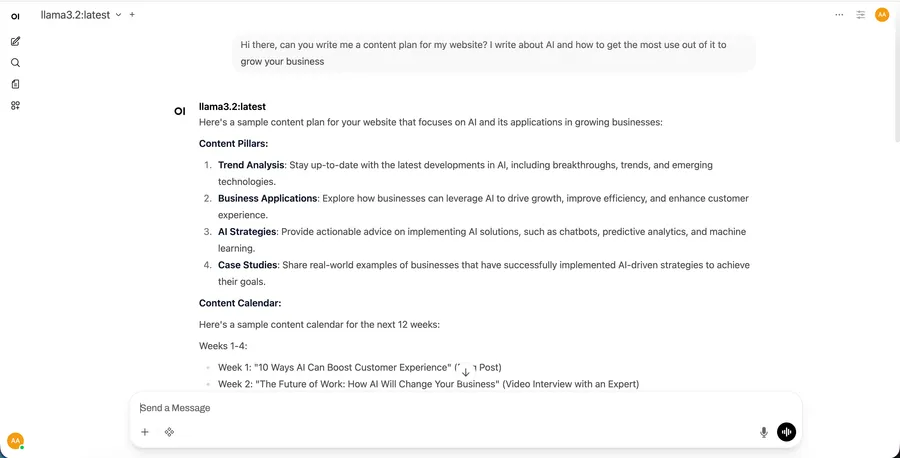
Command line not your thing? You can add a beautiful web interface to Ollama.
Open WebUI (Recommended)
A ChatGPT-like interface that works with Ollama. Supports conversations, multiple models, and more.
Install with Docker:
docker run -d -p 3000:8080 -v open-webui:/app/backend/data --name open-webui --restart always ghcr.io/open-webui/open-webui:main
Then open localhost:3000 in your browser. It auto-detects your Ollama models.
Performance Tips
Get the most out of your hardware:
Match model size to your RAM
A model needs roughly its file size in available RAM. 8GB model = ~8GB RAM needed. Don't push it.
Close other applications
AI is memory-hungry. Close browsers with lots of tabs, large apps. Free up resources.
Use quantized models
Models come in different "quantization" levels (Q4, Q5, Q8). Lower = smaller/faster but slightly lower quality. Q4 is usually fine.
Enable GPU acceleration
Ollama auto-detects GPUs on Mac (Metal) and NVIDIA (CUDA). Make sure drivers are updated.
Keep context short
Longer conversations = slower responses. Start fresh conversations when changing topics.
Common Issues and Fixes
"Model is very slow"
Model is too large for your RAM and swapping to disk. Try a smaller model or add more RAM. Check with ollama list to see model sizes.
"Out of memory error"
Close other applications or use a quantized (smaller) version of the model. Try ollama run llama3.1:8b-q4_0 for a smaller version.
"Responses are low quality"
Try a larger model if your hardware allows. Or adjust your prompting—local models often need clearer, more specific instructions than GPT-4.
"Model won't download"
Check internet connection and available disk space (models can be 2-40GB). Try ollama pull modelname separately to see download progress.
The Hybrid Approach
You don't have to choose one or the other. Many people use both:
Smart Hybrid Strategy
Use local models for:
- Sensitive or confidential work
- High-volume, repetitive tasks
- Quick questions and drafts
- Offline work
Use cloud models for:
- Complex reasoning or analysis
- Tasks where quality is critical
- Multimodal work (images, documents)
- When you need the latest capabilities
Getting Started Today
🚀 Your 10-Minute Setup
Step 1: Install Ollama from ollama.ai (2 minutes)
Step 2: Open terminal, run ollama run llama3.2 (5 minutes for download)
Step 3: Ask it something. You're done.
Step 4: If you like it, try larger models: ollama run llama3.1
Local AI isn't about replacing cloud services—it's about having options. For the privacy-conscious, the budget-minded, or the simply curious, running AI on your own hardware has never been more accessible. The models are free, the tools are free, and the only cost is the hardware you probably already own.
Give it ten minutes. You might be surprised what your computer can do.
Stay Updated on AI
Get the latest news and tutorials